What Is VPN Split Tunneling? How It Works and When to Use It

- When you click links on this page, we may earn an affiliate commission. By using this website you agree to our terms and conditions and privacy policy.
- Participation in online gambling may be illegal in your country and is subject to age restrictions (18, 19, or 21, depending on the jurisdiction). Verify legality and age requirements before participating. Learn more
You switch on your VPN to keep your browsing private, and within a minute, something breaks: your banking app refuses to log in, the office printer vanishes from the network, and a download that should be fast slows to a crawl.
The usual fix is to turn off the VPN, which leaves everything exposed again. Split tunneling is the feature that solves this without that trade-off, by letting you protect the traffic that matters while leaving the rest on your normal connection. This page explains what it is, how it works, when it’s genuinely useful, and the security limits you should know before you switch it on.
What VPN split tunneling is
Split tunneling is a feature that sends some of your traffic through the encrypted VPN tunnel and lets the rest go through your normal internet connection.
A VPN (a service that routes your internet traffic through an encrypted tunnel to a remote server) normally protects everything your device sends. Split tunneling carves out exceptions, so you decide which apps or sites use the VPN and which bypass it.
The point is selective protection. Instead of an all-or-nothing choice between privacy and a working connection, you route sensitive traffic through the VPN and let local or speed-sensitive traffic run directly.
How does VPN split tunneling work?
Split tunneling works by maintaining two paths for your traffic at the same time and applying a rule to determine which path each app or destination takes.
Traffic assigned to the VPN is wrapped in an encrypted tunnel (your data is scrambled so outsiders can’t read its contents) and sent to the VPN server, which forwards it to the wider internet under the server’s IP address. Traffic you’ve excluded skips the tunnel entirely and goes straight out through your internet service provider as it normally would.
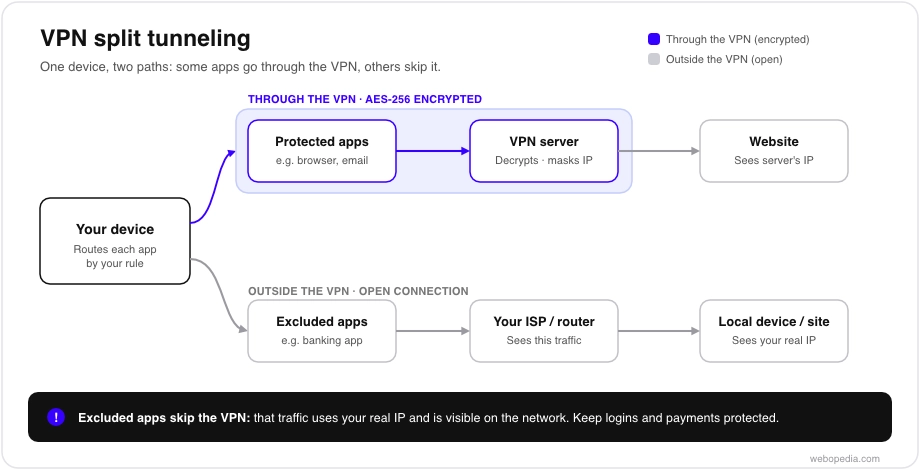
The rule is usually set per app or per destination in your VPN’s settings. When you launch an app, the VPN client checks it against your list and routes it accordingly. Two practical details matter here.
First, availability depends on the operating system: app-based split tunneling is common on Windows and Android, more limited on macOS, and restricted on iOS because of how Apple handles VPN connections. Check your provider’s support for your device.
Second, anything you route outside the tunnel is unprotected, which is the core limitation we return to under what split tunneling does not do.
Why would you use VPN split tunneling?
People use split tunneling to keep a VPN on for traffic that needs it while avoiding the side effects of a full VPN connection. The common situations are clear:
- Reaching local devices. Printers, smart-home devices, and network drives often disappear when all traffic is tunnelled. Excluding them from the VPN keeps them reachable.
- Apps that block VPNs. Some banking and payment apps refuse connections from a VPN IP address. Routing those apps outside the tunnel lets them work while the rest of your traffic stays protected.
- Speed-sensitive tasks. A VPN adds some overhead. Excluding a large download, a video call, or a game can restore speed and reduce latency while you keep your browser on the VPN.
- Using two locations at once. You can appear to be in the VPN server’s location for one app while accessing local services that expect your real location for another.
In each case, the value is the same: you avoid turning the VPN off entirely, which would leave your sensitive traffic exposed.
Types of split tunneling
Split tunneling comes in a few forms, and which ones you have depend on your provider and device. The main distinction is whether you list what goes through the VPN or what stays out of it.
| Type | What it does | Best for |
|---|---|---|
| App-based split tunneling | You choose which apps use the VPN | Excluding a banking app or a game while protecting everything else |
| Inverse split tunneling | Everything uses the VPN except the apps you list | Keeping the VPN on by default with a few exceptions |
| URL- or domain-based split tunneling | You choose which websites use the VPN, usually via a browser extension | Protecting specific sites without tunnelling the whole browser |
App-based and inverse split tunneling are essentially the same mechanism with the default flipped: one protects nothing until you add it, the other protects everything until you exclude it. The inverse is the safer default because a forgotten app stays protected rather than exposed.
What split tunneling does not do
Split tunneling does not protect the traffic you route outside the tunnel, and that traffic is exposed exactly as it would be with no VPN at all. This is the trade-off at the heart of the feature, and a few limits follow from it:
- Excluded traffic is visible. Anything outside the tunnel can be seen by your internet service provider and anyone on your local network, and it carries your real IP address. Only route out what you’re comfortable leaving unprotected.
- It can cause DNS leaks. A DNS leak occurs when website lookups bypass the VPN and reveal what you’re visiting. Split tunneling makes these more likely if it’s misconfigured, so it’s worth running a DNS leak test after setting it up.
- A kill switch may not cover excluded apps. A kill switch (a feature that cuts your internet if the VPN drops, so nothing leaks unprotected) typically applies to tunnelled traffic, not to the apps you’ve deliberately excluded. Don’t assume it protects everything.
- It doesn’t make you anonymous. Like any VPN feature, split tunneling reduces exposure for the traffic it covers; it doesn’t make you invisible. Your accounts and payment methods still identify you.
The safe habit is to exclude only what you have a clear reason to exclude, and to keep anything involving logins, payments, or private browsing inside the tunnel.
How to turn on split tunneling
Split tunneling is enabled in your VPN app’s settings, usually under a “split tunneling” or “app exclusions” menu, where you add the apps or sites that should bypass the VPN. The exact steps differ by provider and device, and the feature may be absent on iOS. For a step-by-step walkthrough, see our guide to how to set up split tunneling, and if you’re choosing a provider partly for this feature, our best VPNs comparison notes which platforms each one supports.
Frequently asked questions
Does split tunneling slow down my connection?
It usually speeds up the traffic you exclude, because that traffic skips the VPN’s encryption overhead and the trip to the VPN server. Traffic you keep in the tunnel runs at normal VPN speeds. This is one of the main reasons people route large downloads or video calls outside the VPN.
Is split tunneling available on every device?
No. App-based split tunneling is common on Windows and Android, more limited on macOS, and generally unavailable on iOS because of how the operating system manages VPN connections. Check your provider’s documentation for your specific device before relying on it.
What's the difference between split tunneling and a kill switch?
They solve opposite problems. Split tunneling deliberately lets chosen traffic leave the VPN, while a kill switch stops all tunnelled traffic if the VPN drops so nothing leaks. They can work together, but a kill switch typically won’t protect the apps you’ve excluded with split tunneling.
Next step
If split tunneling sounds useful, set it up with intent: keep logins, payments, and private browsing inside the tunnel, exclude only local or speed-sensitive traffic, and run a DNS leak test afterwards to confirm nothing is leaking. Start with our how to set up split tunneling guide, and if you’re new to the basics, read what a VPN is first. (In-body links here are internal Webopedia pages; paths are placeholders until the VPN hub is published.)


